
Menu CRM › Commissions (address: /crm/commissions). The page shows what you earned, what is pending and what was paid, pay month by pay month.
Your statement
The arrows change the pay month. The cards at the top show:
- Earned: commissions computed, not yet approved;
- Approved: commissions approved by your manager or by payroll;
- Paid: commissions of the month that were paid;
- Pending: upcoming commissions, estimated at the current rate;
- Year to date and Current rate (with your quota attainment).
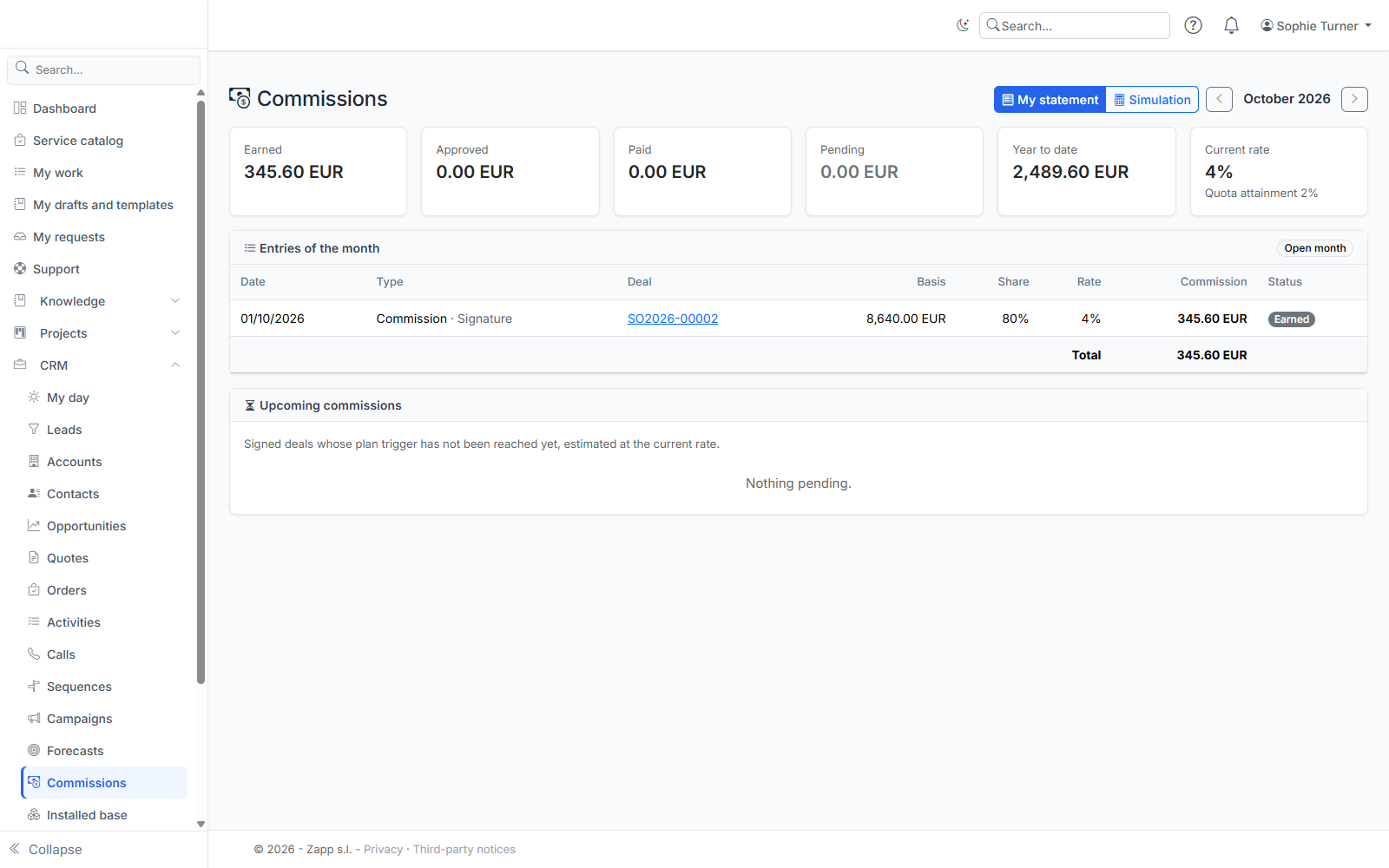
The Entries of the month table details each line: date, type, order, basis, your share (revenue split), rate and commission.
| Type | What it is |
|---|---|
| Commission | Created by a trigger: signature, invoice issued or payment, depending on your plan. |
| Clawback | Order cancelled: the commission comes back as a negative amount. Nothing is ever deleted. |
| Credit note clawback | Credit note issued on an invoice of the order: the commission comes back as a negative amount in proportion to the credit note (share of the invoice for an invoicing commission, share of the order otherwise), never beyond what remains. A payment commission created after the credit note takes it into account from the start. |
| Bonus | One-off bonus granted by sales administration. |
| Recalculation difference | The plan changed, or the margin became known later: only the difference is added. |
A zero line marked Margin unknown or No exchange rate will be caught up by a recalculation.
Upcoming commissions lists your signed deals whose trigger has not been reached yet (installments not invoiced, orders not paid).
Who sees what
- You only see your own commissions.
- A manager sees those of their reports (hierarchy of the month shown) in the Team tab.
- Payroll sees everyone's commissions.
Approve (managers)
In Team, tick the sales reps, then Approve selection: their earned commissions for the month become "approved". You can also approve from a rep's statement. A manager never approves their own commissions.
Simulate a deal
Simulation tab: enter an amount excluding tax, or start the simulation from an opportunity. The result shows the commission, the quota attainment before and after the deal, and the rate applied: a deal that takes the quota above a tier benefits from the accelerator. It is an estimate based on today's plan and figures.
Payroll
Payroll tab (payroll right):
- Check the month's totals.
- Lock the month: refused while some commissions are not approved, unless you tick Also approve remaining entries. A commission created after the lock counts in the next open month.
- CSV export or Excel export for the payroll software: one line per entry.
- Record payment: the month's commissions become "paid".
Rules to know
- Nobody approves their own commissions, not even payroll: yours must be approved by your manager or by another payroll user before the month is locked.
- Payment only pays approved commissions; an unapproved commission moves to the next open month.
- A commission on payment is dated on the payment date entered on the order.
- Simulation: a deal already won is not counted twice in attainment. On a margin plan, the estimate uses the margin of the opportunity lines (catalog cost price); if a line has no known cost, it cannot be computed.