
The Forecasts page (menu CRM › Forecasts, address: /crm/forecasts) shows what you and your team are likely to sign over a period. It is calculated from your opportunities: there is nothing more to enter.
Choosing the period
Choose Month, Quarter or Year; the arrows move to the previous or next period. The current quarter is shown by default.
How an opportunity counts
Each opportunity counts in one category only:
- Actual (won): won during the period;
- Commit, Best case or Pipeline: open, with an expected close date in the period. The category comes from the opportunity's stage; the sales rep can override it on the record;
- Omitted: open, but left out of the forecast.
Lost opportunities do not count. A deal shared between several sales reps (revenue split) counts for each of them according to their share.
Amounts are converted into the catalog's base currency. An opportunity whose currency has no exchange rate is flagged at the top of the page and is not counted: ask your administrators to add the rate.
Key figures
- Actual (won) and quota attainment: the amount won, and its share of the period's quota (for a team, the sum of its members' personal quotas);
- Commit forecast: actual + commit. The arrow shows how it has moved since last week's snapshot;
- Best case: actual + commit + best case;
- Open pipeline and weighted: the amount of open deals, and that amount multiplied by their probability;
- Actual vs. forecast: what is still to be won to meet the commit forecast.
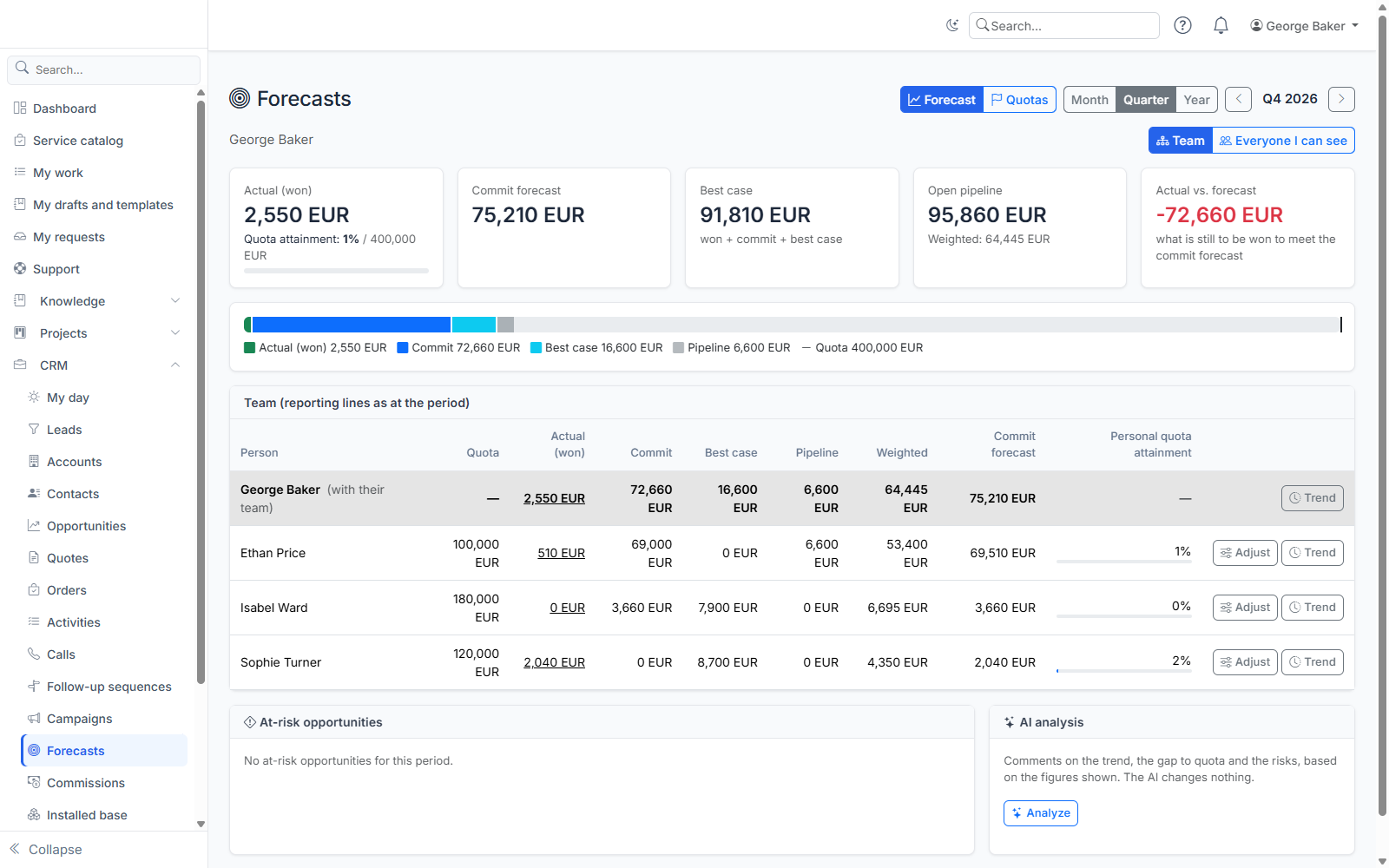
The bar shows what the forecast is made of; the vertical line marks the quota.
Your team
If you are a manager, the page shows your roll-up forecast (you and everyone who reports to you), then one line per direct report, each with their own team. Click the name of a direct report who has a team of their own to drill down; the breadcrumb takes you back up.
The team is the one as at the period: for a past quarter, a sales rep who has since moved to another manager stays in the team of the manager they had at the time.
The Everyone I can see button lists each person you can see who has opportunities or a quota in the period.
Who sees what
You see your own forecast and those of the people who report to you. Depending on your CRM rights, you also see those of your team members, of the people in your division, or of everyone. Amounts are always rolled up; the opportunity details only show the ones you are allowed to open.
Adjusting a forecast (managers)
The Adjust button on a line replaces the calculated commit forecast or best case with your own estimate, for instance when you know a customer will postpone their decision. Add a comment to explain why. Opportunities do not change.
A manager adjusts the forecast of their direct and indirect reports, never their own: their own manager adjusts the forecast of their team. When several managers adjust the same person, the one highest in the hierarchy wins, so you can neither override nor clear your manager's adjustment. An adjusted value is marked with a pencil; leave the amount empty to remove your adjustment. Every adjustment can be reviewed under Trend.
The Personal quota attainment column compares each person's personal amount won with their quota, as on the quotas page; their team's amount won stays in the Actual (won) column. Only the people you can see are added up in the totals.
At-risk opportunities
The At-risk opportunities table flags the deals of the period that need your attention, using fixed rules:
- close date passed;
- stuck in stage: longer than the stage's maximum duration;
- committed with low probability: "commit" category with less than 50% probability;
- closing soon at an early stage: less than 14 days before the close date and less than 30% probability;
- no amount, or amount not converted.
The riskiest come first.
AI analysis
If an AI provider is configured on your instance, the Analyze button writes a comment on the trend, the gap to quota and the risks, based on the figures shown. The AI changes nothing. Without AI, the rest of the page works exactly the same.
How a forecast evolves
The Trend button on a line (address: /crm/forecasts/history) shows how the forecast has changed over the period. Every Monday, the forecast for the current month, quarter and year is saved as a snapshot. The chart compares actual, commit forecast and best case week after week, with the quota as a dotted line; Show the values displays the table.
The page also shows the gap between actual and the first forecast of the period, and the adjustment history (date, author, amount, calculated value, comment).