
The CRM works with your company's telephony provider: Ringover, Aircall, 3CX or Teams Phone. An administrator connects it in Administration › Connectors and automation › Telephony and maps your account to your line. Without a provider, everything still works: numbers open in your calling app (phone, softphone, Teams).
Click-to-call
On a contact or account record, the Call button (green handset) next to a number first rings your phone: pick up, and the provider then dials the number. The number itself stays a regular link that opens your calling app.
The button only shows if your provider supports it (Teams Phone does not) and your account is mapped to your line. Otherwise, ask an administrator.
A national number ("06…") is dialed with the record's country (contact or account), otherwise with the company's default country. Without a known country, the button does not show: enter the number in international format (+33…) or fill in the record's country.
The call console
The CRM's Calls tab (address: /crm/calls) shows your telephony:
- Current call: when an incoming call rings, the caller record shows up at once — contacts and accounts recognised by the number, open opportunities, recent tickets. You only see what your rights allow.
- Search a number to show the same record.
- My recent calls, with missed calls in red.
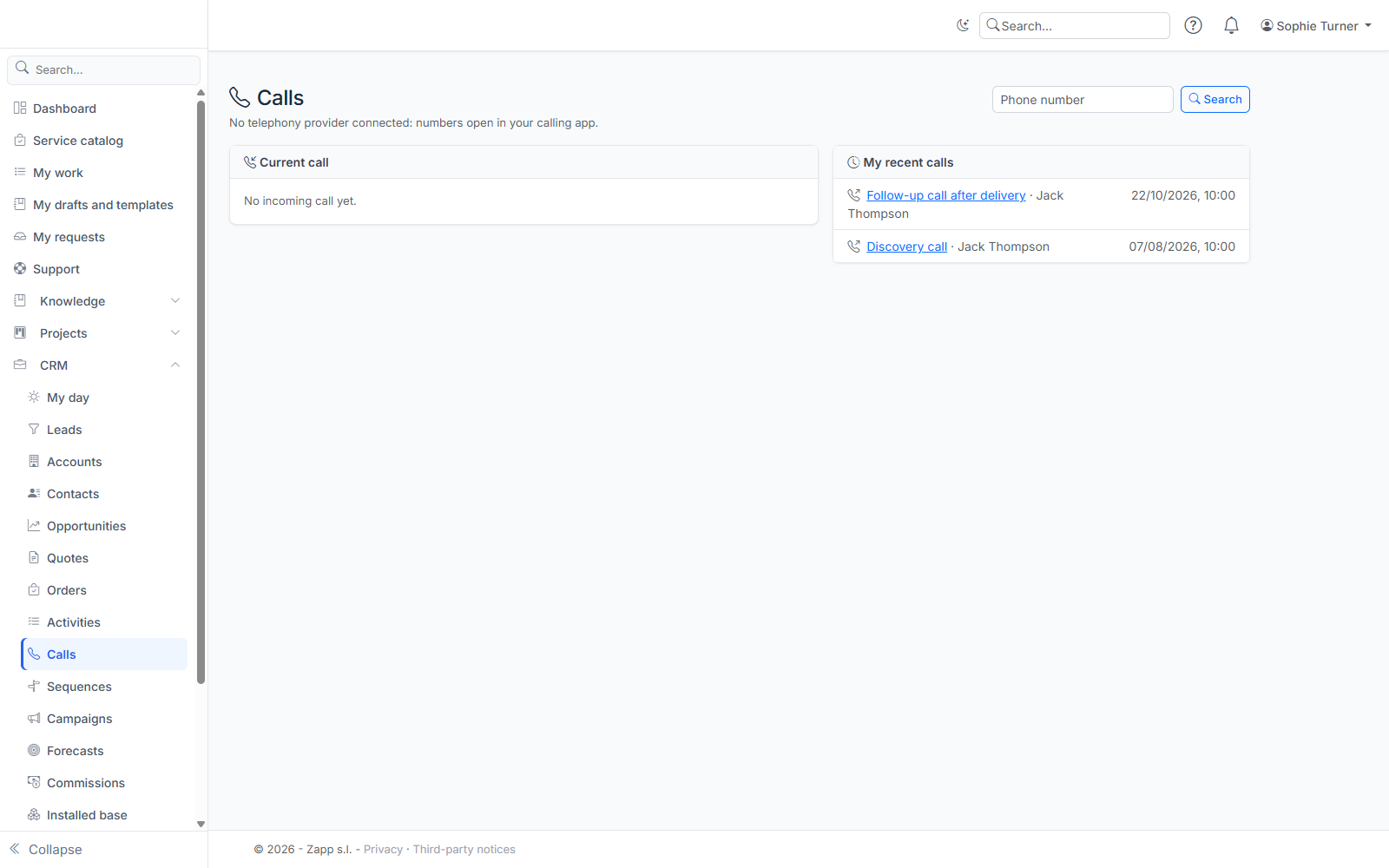
Even when the console is closed, a notification (bell) tells you about the incoming call and opens the caller record. For an unknown number, the record offers to create the contact with this number or to log a call.
With Teams Phone, calls arrive after they end (about every five minutes): no record while ringing, but the call log works.
The automatic call log
Every ended or missed call becomes a call activity in your name, linked to the recognised contact and account: direction (incoming, outgoing), duration and outcome (reached, no answer). A missed incoming call is notified. You find it in your activities, in My day and in the record's timeline.
Qualify a call
On the call's page, the Qualify the call box lets you, in one go:
- correct the outcome (reached, no answer, voicemail, wrong number, busy);
- add notes;
- create the next action: a task with its due date, linked to the same contact and account.
Transcript and summary
If your administrator has enabled artificial intelligence and a transcription service is installed, calls recorded by the provider are transcribed and summarized: the summary (stars icon) and the transcript show on the call's page. Without AI, nothing is transcribed or sent.
Retention periods
- The link to a call recording is removed after 90 days (setting:
Telephony:RecordingRetentionDays). - The transcript and summary are erased after 365 days (setting:
Crm:Telephony:TranscriptRetentionDays). - Transcription can be turned off for the whole instance (
Crm:Telephony:TranscriptionEnabledset tofalse). - A contact's right to be forgotten also erases the number, transcript and summary of their calls; duration and outcome stay for statistics.