
An opportunity is a deal in progress with an account: what you hope to sell, for how much, and when. It moves through a pipeline, stage by stage, until it is won or lost. Menu: CRM › Opportunities (address: /crm/opportunities/board).
You only see the opportunities your CRM roles open to you (yours, your team's, your division's, or all of them), plus those whose team you belong to or that are shared with you. See Understanding what you see in the CRM.
Three ways to see your deals
The buttons at the top switch between views; the filters stay the same (search by name, pipeline, status, type, expected close, owner, stalled only, filterable custom fields).
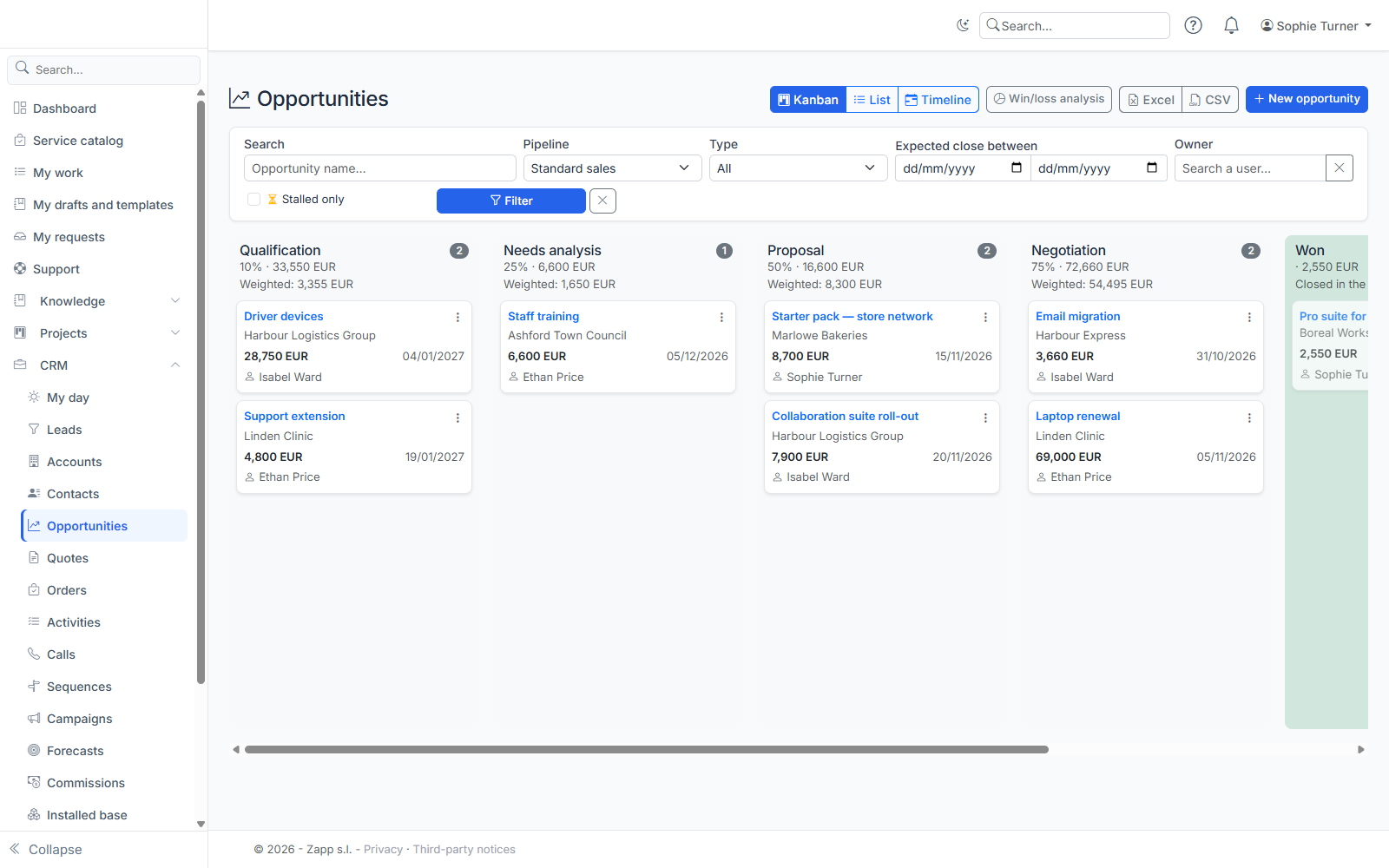
- Kanban: one column per stage of the chosen pipeline. Each column shows the number of deals, their amount per currency and the weighted amount (amount × probability) in the catalog's base currency. Deals won and lost in the last 30 days are in the last two columns.
- Drag a card to another stage to move it forward. If the stage requires information that is missing, the card goes back and the list of fields to fill in is shown.
- With the keyboard, the ⋮ menu of a card offers Move to.
- Dropping a card on Won or Lost opens the closing window.
- List: amount, probability, weighted amount, expected close (in red when overdue), owner and your custom fields as columns. The Excel and CSV buttons export the filtered list (according to your export right).
- Timeline: deals grouped by month of expected close, with the month's total and weighted amount. Handy to prepare a forecast review.
An hourglass flags a deal that is stalled: it has stayed in its stage longer than planned for that stage. Its owner is notified once.
Creating an opportunity
Click New opportunity (or the button of the "Opportunities" panel on an account or contact record). Fill in:
- the deal name and its account;
- the pipeline and the starting stage (the first stage by default);
- the amount and its currency, the expected close date;
- the probability and the forecast category: those of the stage are suggested, you can adjust them;
- the type (new business, upsell, renewal), and for a subscription or a contract the billing period and the term;
- the source, the campaign, the next step and its date;
- the main contact and their role, the competitors involved;
- your custom fields.
You are the owner if you leave it empty.
The opportunity record
The stage path
At the top of the record, the pipeline stages follow one another; the current stage is in blue. Click a stage to move to it. Below the path:
- the time spent in the stage (and the planned duration);
- the information the stage requires to enter it;
- a guidance note for this stage, prepared by your administrators.
Changing stage takes the probability and forecast category of the new stage.
Closing
- Won: confirm the final amount and the date; a reason may be required.
- Lost: choose the reason (price, product fit, competitor chosen…), the winning competitor and add a comment.
A closed deal can be reopened in one click: it goes back to the stage it was in. As with a stage change, the required fields of that stage must be filled in.
Products and services
Add the catalog products sold: quantity, discount and unit price. Leave the price empty to use the catalog price lists for this account. As soon as there are lines, the opportunity amount is their total, and its currency can no longer change. The deal is then closed at that total. If you remove the last line, the amount goes back to 0: enter it again. When the current stage requires the amount, a change that would bring it back to 0 is refused.
Contacts, competitors, revenue split
- Contacts and roles: who decides, who buys, who uses… A contact can be marked as primary.
- Competitors involved: the list comes from your administrators' reference list. Under each competitor listed, the card shows its strengths and weaknesses, entered by your administrators: your cheat sheet against it.
- Revenue split: share the deal between several sales reps, as percentages (100% in total). Without a split, everything goes to the owner.
When the current stage requires a contact with a role, a competitor listed or a revenue split, removing the last one (or clearing the split) is refused, as in the edit form: the message lists the information the stage requires. Likewise, the last contact the stage requires cannot be deleted.
Opportunity team and sharing
Add colleagues to the deal team with a role (presales, technician, partner…) and an access level (read, or read and write), or share it with a user. You need the share right.
Renewal
A won deal, recurring or with a term, offers Create the renewal: a new "renewal" opportunity, dated at the end of the term, with the same amount and contacts.
Activities
The Activities and timeline panel lists the deal's tasks, calls, meetings, notes and emails; its buttons create an activity already linked to the opportunity. Emails and meetings captured automatically land there too (see Emails and calendar).
History
The stage history shows each stage passed through and the time spent; the history keeps every change, field by field.