
An activity records what you do with your customers and prospects: a task to do, a call, a meeting, a note, or an email (logged automatically, see Emails and calendar). Menu: CRM › Activities (address: /crm/activities).
Creating an activity
Click New activity, choose the type, then fill in:
- Subject (required) and content;
- for a task: due date, priority and, if you wish, a reminder (you receive a notification at the chosen time);
- for a call: direction (inbound or outbound), outcome (reached, no answer, voicemail…) and duration;
- for a meeting: start, end, location, video call and attendees (addresses separated by commas);
- the links: an account, a contact, or another CRM record (lead, opportunity). If you choose a contact without an account, the account of their main organization is used;
- the owner (you, by default).
From an account or contact page, the buttons of the Activities and timeline panel create the activity already linked. Log a call directly opens a completed call.
Meeting invitations
Attendees receive an invitation:
- through your Microsoft 365 or Google calendar, if your administrator has set up the calendar connector and you have enabled "Create my CRM meetings in my calendar" (Emails and calendar);
- otherwise, by email with an .ics file that everyone adds to their calendar, whatever tool they use.
A change updates the invitation; Cancel the meeting notifies the attendees.
Following up and completing
- Complete closes a task or a call (you can add a note); Reopen sets it back in progress.
- The list can be filtered by type, status, owner, account or contact; Overdue only shows missed due dates. The Excel and CSV buttons export the filtered list.
- Each activity keeps its change history.
You only see and edit the activities allowed by your CRM role (yours, your team's or your division's…), as for accounts and contacts.
My day
CRM › My day (address: /crm/activities/my-day) gathers, for the chosen day:
- overdue follow-ups;
- tasks and calls due today (one click completes a task);
- the day's meetings;
- what you completed today;
- the next seven days.
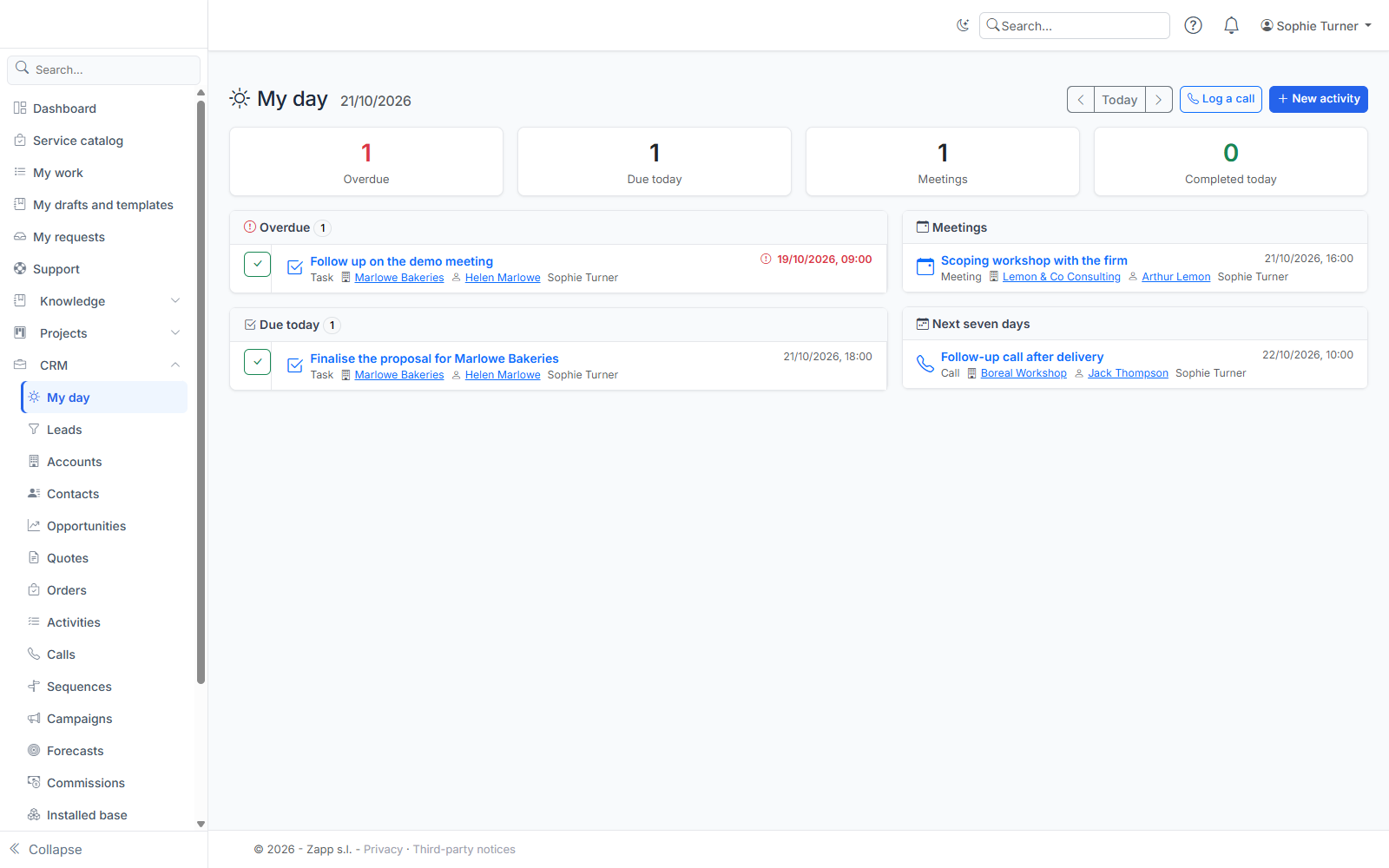
Times are shown in your browser's time zone. The arrows move to the previous or next day.